Activating LinSig 3

Activating LinSig 3 is a straightforward process, with many users not needing further support once receiving their Online Registration Code.

As LinSig 3 is deployed in a variety of working environments, however, sometimes problems do occur.

This page aims to document best practice for registering LinSig 3 in a variety of arrangements, and to aid in fault-finding where problems occur.

Support Topics

JCT Advanced Licensing System
Online Registration using the JCT Advanced Licensing System
Email (Offline) Registration Using the JCT Advanced Licensing System
Unlimited Networked PCs Site Licences
Network Licence Validator installation guide (for Unlimited Network PCs Site Licences only)
Registration of Network Licence Validator
Diagnosing Network Licence Validator Problems Communicating with LinSig
Legacy JCT Consultancy Licence Server - Server Setup
Legacy JCT Consultancy Licence Server - Client Setup
Other problems? Contact us.

JCT Advanced Licensing System

LinSig version 3.2.18.0 and above, as well as all versions of quickGreen, include the option to use an “Advanced Licensing System” which offers even greater flexibility and ease of use. This can be used if advised by JCT Consultancy that your licence is compatible with this system.

The Advanced Licensing System communicates directly with the JCT Licensing server making the initial registration process easier and allowing easier management of licences in situations where computers are replaced due to upgrade or failure.

We recommend online registration if possible as this is mostly automatic once you have entered your Registration Code. However, if internet connectivity is not possible you can still register via email.

Each time you start LinSig it will automatically check online with the JCT Licensing server to verify that your licence is still valid. However, this doesn’t mean that you always need to be connected to the internet when using LinSig, as you can still continue to use LinSig even if it is unable to check online with the JCT Licensing server. Should you remain offline for an extended period of time, LinSig may request that you periodically re-register via email.

Online Registration using the JCT Advanced Licensing System

In order to allow quick and simple registration of your LinSig licence it is recommended to ensure your computer is online so that it can be automatically validated with JCT.

With each LinSig licence, JCT provide a single Registration Code that can be used to register an installation of LinSig on a workstation. The same Registration Code can be used on as many workstations as permitted by the licence.

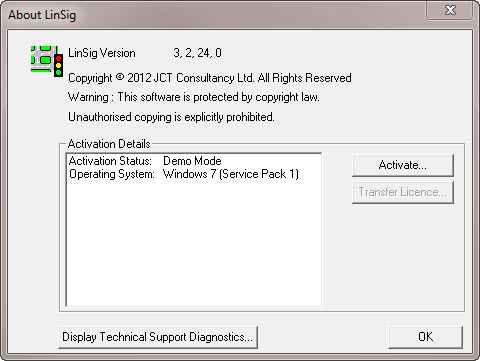
  1. Start LinSig and select the “Help -> About LinSig and Activations” menu option.

    The following window will be displayed. Click the “Activate” button to continue.

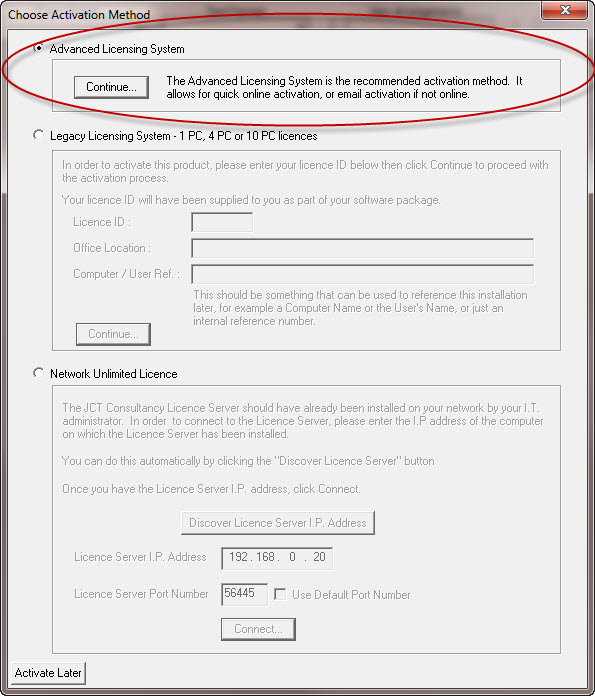
  1. The following window will be displayed. Ensure the “Advanced Licensing System” option is selected. Then click the “Continue…” button to proceed.
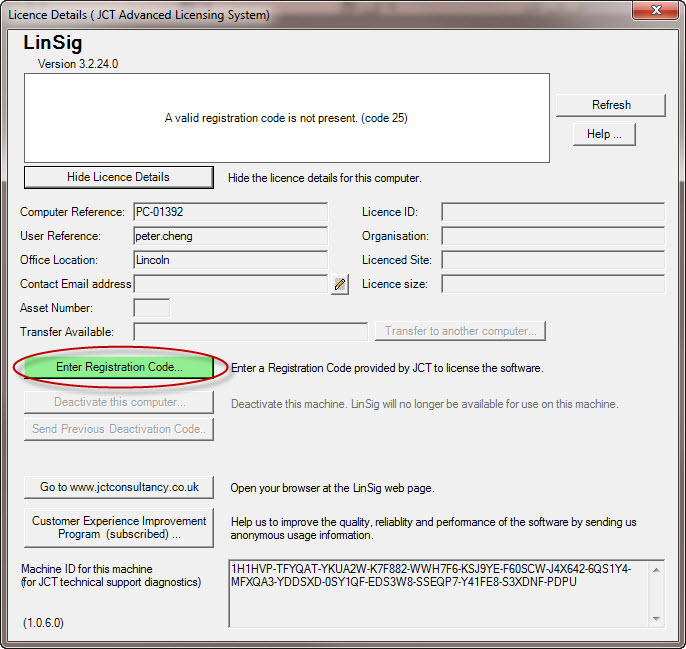
  1. Click the ‘Enter Registration Code…’ button to start the registration process.
  1. A test will now automatically run to check if LinSig can communicate online with JCT.

    If successful, it will advise you to continue with the online registration as described in the next steps.

    If unsuccessful, it will advise you to continue with the offline email registration process.

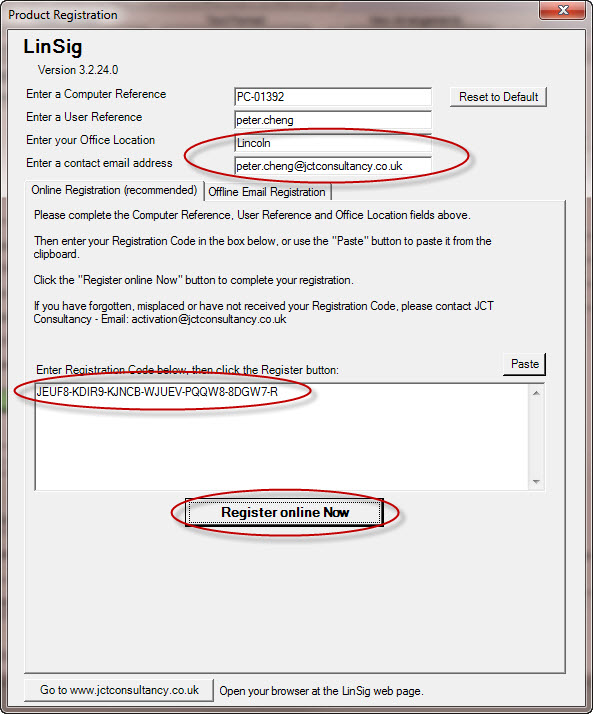
  1. Enter your Office Location, and optionally enter a contact email address. Then enter the Registration Code that has been provided to you with your licence and click the ‘Register online Now’ button. LinSig will now automatically contact JCT to ensure that the Registration Code is valid. This may take a few seconds.
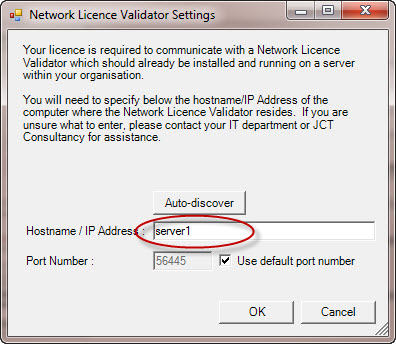
  1. For Unlimited Networked PCs Site licence holders only, you may now be presented with the dialog below. If this dialog is not displayed, or if you are a 1PC, 4PC or 10PC Site licence holder, you can skip this step.

    LinSig needs to know which computer on your local network is running the Network Licence Validator service. Enter either the IP Address or the Hostname of that computer and then click OK to continue.

    LinSig will now attempt to communicate with the Network Licence Validator. If it is unsuccessful you may need to liase with your IT department to determine which computer is running the Network Licence Validator and whether any firewall settings need adjusting. Some typical causes of problems can be found here.

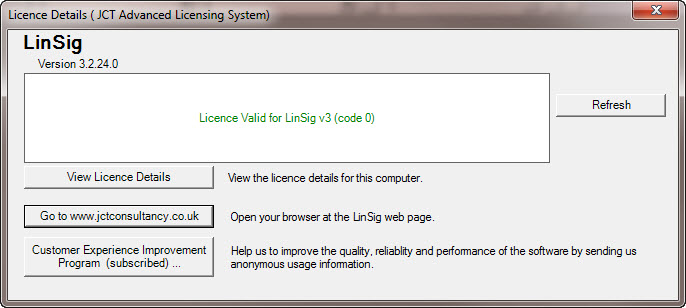
  1. Once your Registration Code has been validated a dialog will be presented indicating that the registration has been successful.
  1. If the registration process was unsuccessful (for example if JCT could not be automatically contacted) you will be presented with a dialog box providing additional information advising how best to resolve the problem.

Email (Offline) Registration Using the JCT Advanced Licensing System

For speed and simplicity we recommend online registration, however if LinSig is unable to access the internet you can instead use the email registration process.

Please note that if LinSig continues to be unable to access the internet it may periodically prompt you to repeat the email registration process in order to verify your licence.

  1. Start LinSig and select the “Help -> About LinSig and Activations” menu option.

    The following window will be displayed. Click the “Activate” button to continue.

  1. Ensure the “Advanced Licensing System” option is selected.

    Then click the “Continue…” button to proceed.

  1. Click the ‘Enter Registration Code…’ button to start the registration process.
  1. For speed and simplicity we recommend online registration, however if you wish to proceed with email registration then continue as follows.

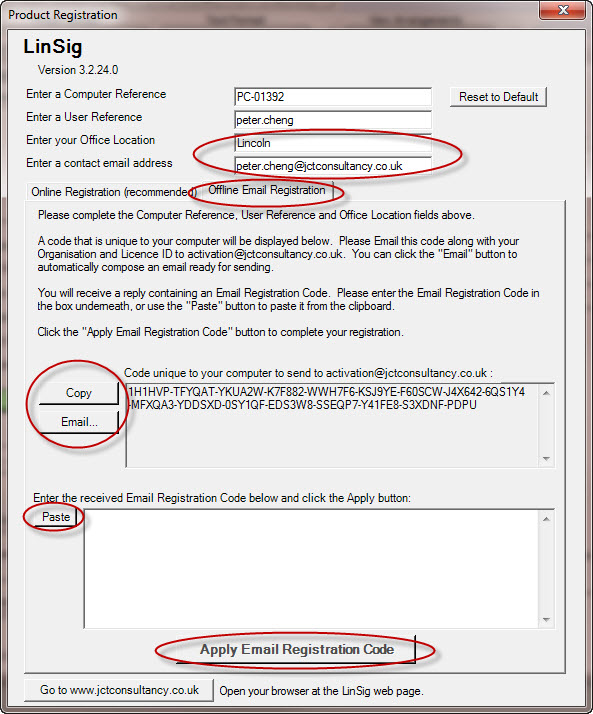
    Enter your Office Location, and optionally enter a contact email address, then click the “Offline Email Registration” tab. LinSig will display a code that is unique to your computer. Please Email the code along with your Organisation and Licence ID to activation@jctconsultancy.co.uk. You can click the “Email” button to automatically compose an email ready for sending.

    You will receive a reply containing an Email Registration Code. Please paste the Email Registration Code in the box underneath, then click the Apply button to complete your registration.

  1. Once your Email Registration Code has been validated a dialog will be presented indicating that the registration has been successful.
  1. If the registration process was unsuccessful for any reason you will be presented with a dialog box providing additional information advising how best to resolve the problem.

Unlimited Networked PCs Site Licences

An Unlimited Networked PCs Site Licence allows LinSig to be installed onto any number of PCs at the licensed site only, provided they are online and networked within the same subnet.

These licences can be registered in the same way as 1PC, 4PC or 10PC Licences, either online or via email.

With this type of licence the LinSig software must be able to communicate online over the internet with the JCT Licensing server at least once every 7 days.

In addition, in order to verify that LinSig is being used at the licensed site only, a small piece of additional software (the Network Licence Validator) needs to be installed on a computer alongside the workstations. This does not necessarily have to be on a server computer, as long as it can be contacted by the LinSig workstations most of the time.

The Network Licence Validator must exist within the same network subnet as the workstations. If your traffic engineers are not all within the same network subnet, please contact us.

The Network Licence Validator software needs to be able to routinely communicate online over the internet with the JCT Licensing server.

Note that it is strictly prohibited to allow the Network Licence Validator to be accessed by computers outside of the licensed site.

On each workstation, when LinSig is used it will attempt to communicate with the Network Licence Validator across your local network. If this is not possible (for example if LinSig is on a laptop that is temporarily out of the office, or if the Network Licence Validator is temporarily unavailable) then LinSig can continue to be used for 7 more days without being able to communicate with the Network Licence Validator.

Network Licence Validator installation guide (for Unlimited Network PCs Site Licences only)

Download the Network Licence Validation setup program below.

Once installed, the Network Licence Validator runs continuously as a standard Windows Service.

A Network Licence Validator Control Panel administrative user-interface can also be accessed via the Start Menu at “Start -> Programs -> JCT Network Licence Validator -> JCT Network Licence Validator Control Panel”. This user-interface can be used for initial registration of the Network Licence Validator (see below), to stop and start the service, and also to enable diagnostic logging to the Windows Event Log.

Registration of Network Licence Validator
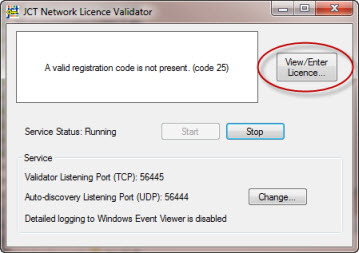
  1. Start the Network Licence Validator Control Panel via the Start Menu at “Start -> Programs -> JCT Network Licence Validator -> JCT Network Licence Validator Control Panel”.

    The following window will be displayed. Click the “View/Enter Licence…” button to continue.

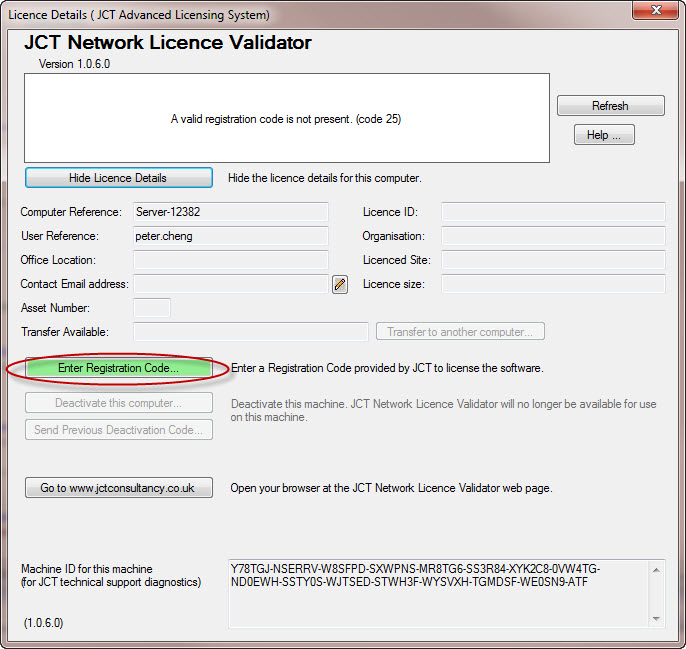
  1. Click the ‘Enter Registration Code…’ button to start the registration process.
  1. A test will now automatically run to check if the Network Licence Validator can communicate online with JCT.

    If successful, it will advise you to continue with the online registration as described in the next steps.

    If unsuccessful, it will advise you to continue with the offline email registration process. To avoid having to repeat the email registration at a future date, we strongly recommend that the Network Licence Validator is able to communicate online with JCT and that you use online registration.

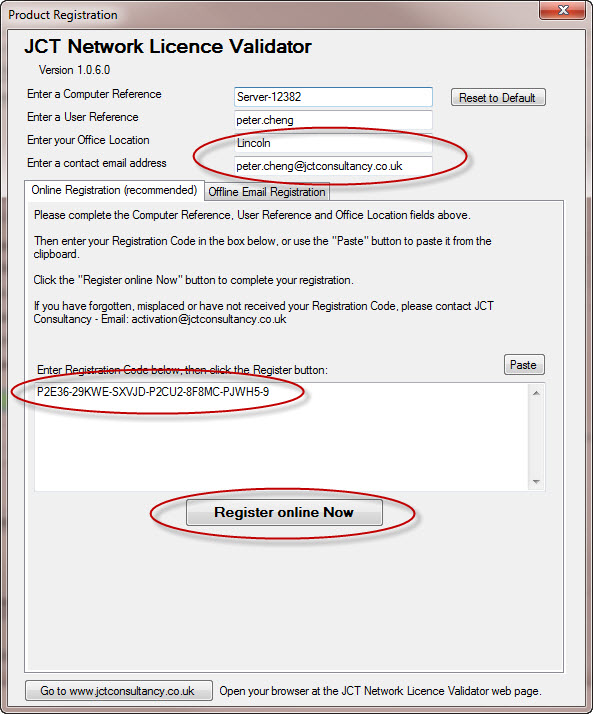
  1. Enter your Office Location, and optionally enter a contact email address, then enter the Network Licence Validator Registration Code that has been provided to you with your licence and click the ‘Register online Now’ button. LinSig will now automatically contact JCT to ensure that the Registration Code is valid. This may take a few seconds.
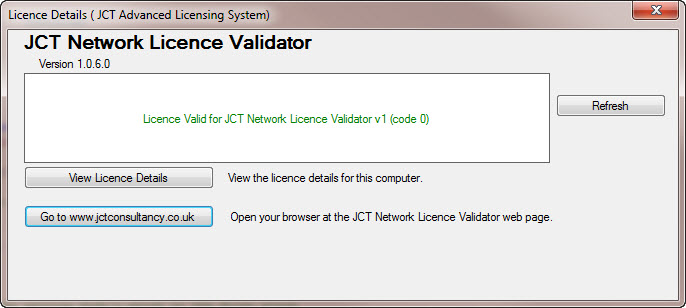
  1. Once your Registration Code has been validated a dialog will be presented indicating that the registration has been successful.
  1. If the registration process was unsuccessful (for example if JCT could not be automatically contacted) you will be presented with a dialog box providing additional information advising how best to resolve the problem.

Diagnosing Network Licence Validator Problems Communicating with LinSig

When LinSig is installed and registered on a separate workstation, it will attempt to communicate over the local network with the Network Licence Validator. If it is not able to successfully communicate with the Network Licence Validator it will not be possible to register LinSig on that workstation.

Below are a list of possible causes of failure to communicate with the Network Licence Validator along with steps to take to correct them.

The Network Licence Validator service is not running

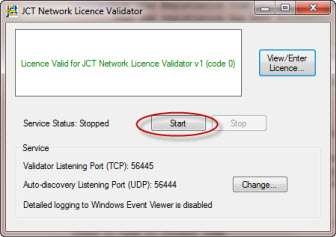
The service can be started by starting the Network Licence Validator Control Panel and then clicking the “Start” button as shown below. It may take several seconds to start the service. If the service still fails to start, retry clicking the “Start” button a second time.

The Network Licence Validator is not registered

If the Network Licence Validator is not registered this will be indicated in the Network Licence Validator Control Panel.

Perform the registration process described above, but if you are still experiencing registration problems please contact JCT Consultancy via email (activation@jctconsultancy.co.uk) or via telephone (01522 751010).

A firewall is blocking the communication

The Network Licence Validator listens for incoming communication from LinSig on TCP Port 56445. You must ensure that inbound traffic is permitted to the Network Licence Validator on this port, and that outbound traffic is permitted from LinSig to your local network.

During the installation of the Network Licence Validator and LinSig, the setup program will have attempted to configure Windows Firewall automatically. However, depending on your network configuration and whether other firewalls are in use, you may need to check your firewall settings further.

The Network Licence Validator and LinSig exist on different network subnets

Unless advised otherwise by JCT, the computer running the Network Licence Validator and the workstation running LinSig must exist on the same network subnet. If this is the not the case, the Network Licence Validator will refuse to reply to any communication from LinSig.

Make sure your Network Licence Validator is installed on a computer that is on the same subnet as the workstations that need to communicate with it.

The cause of failure to communicate is unknown

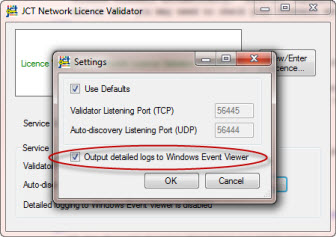
If the Network Licence Validator is still unable to communicate with LinSig, you may find it useful to enable the detailed logging to Windows Event Viewer. You can do this by clicking the “Change…” button and then ticking the “Output detailed logs to Windows Event Viewer” tickbox as shown below. After you make this change there will be a short pause while the service restarts.

The Network Licence Validator records any significant events such as contact from a LinSig workstation, subnet validation, success or failure to respond to LinSig, etc. in the Application Log within Windows Event Viewer.

You can find these events within Windows Event Viewer by filtering on the Event Source “JCT Network Licence Service”.

Legacy JCT Consultancy Licence Server – Server Setup

With the Unlimited Networked PC Licences it is not necessary to activate each PC individually, instead workstations obtain a licence from a central licence server, which authorises them to run LinSig. In legacy cases, this requires a separate piece of software called the JCT Consultancy Licence Server to be installed on a central computer that can be accessed across the network by all computers that have LinSig installed.

The following instructions show you how to activate the Licence Server software on the central computer.

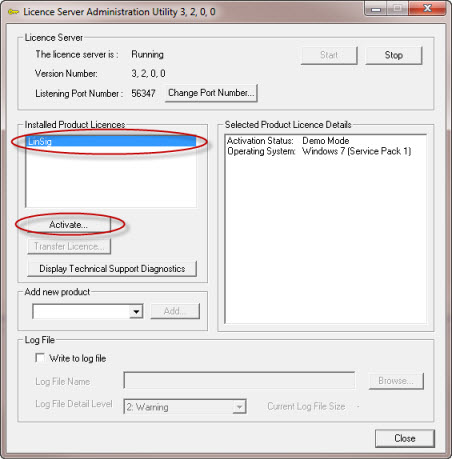
  1. Start the LinSig Licence Server Administration Utility. You can find it from the Programs section of the Windows Start menu under “JCT Consultancy LinSig Licence Server”.
  1. Select “LinSig” in the Installed Product Licences box and click the “Activate…” button to continue.
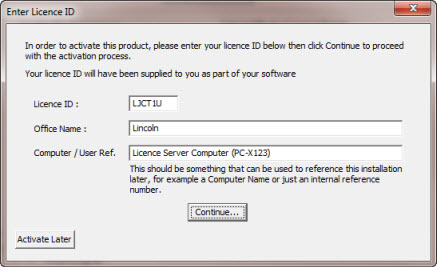
  1. The following window will be displayed.

    Enter your Licence ID, Office Location and a Computer / User Reference.

    Your Licence ID will have been provided to you by JCT Consultancy and will be of the format LxxxxU.

    Then click the “Continue…” button to proceed.

  1. The following window will be displayed containing your installation details which are unique to your computer.

    Email these details to “activation@jctconsultancy.co.uk”. You can click the blue link to automatically compose an email ready to send, or alternatively you can click the “Copy all details to clipboard” button and paste them into an email by hand.

    JCT Consultancy will respond to your email with an Activation Code. The Activation Code is unique to your computer.

  1. Enter the Activation Code into the boxes at the bottom. You can copy the Activation Code out of your received email and then click the “Paste Activation Code from Clipboard” button to paste the code in.

    Once you have entered your Activation Code, click “Continue…”

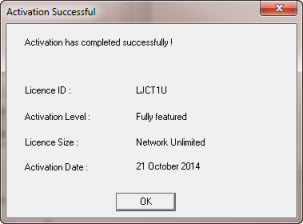
  1. Upon successful activation, the following window will be displayed.

Legacy JCT Consultancy Licence Server – Client Setup

The Legacy Unlimited Networked PC Licence requires a separate piece of software called the JCT Consultancy Licence Server to have already been installed on a suitable computer at your office. The following instructions assume that the Licence Server has already been installed and is up and running.

  1. Start LinSig and select the “Help -> About LinSig and Activations” menu option.

    The following window will be displayed. Click the “Activate” button to continue.

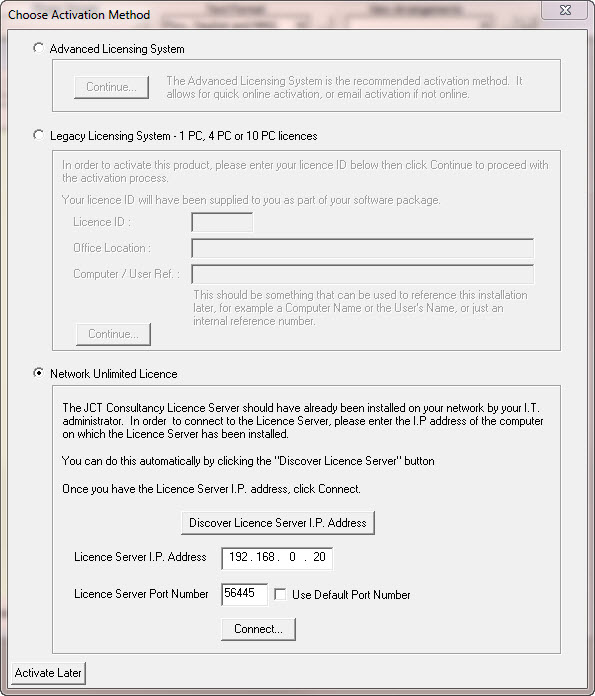
  1. The following window will be displayed.

    Ensure the “Network Unlimited Licence” option is selected.

    You now need to enter the IP Address of the computer where the Licence Server software is installed. If you don’t know what this is, your IT dept may be able to help. Alternatively, you can click the “Discover Licence Server IP Address” button to automatically detect the IP Address of the Licence Server, however depending on your office network setup this is not always guaranteed to be successful.

    Once the IP Address is correctly entered, click the “Connect…” button.

  1. Upon successful activation these settings will be automatically remembered for the next time you start LinSig.

Other problems? Contact us!


    * Indicates required field

    No products in the basket.