Activating quickGreen

Activating quickGreen 2 is a straightforward process, with many users not needing further support once receiving their Online Registration Code.

As quickGreen 2 is deployed in a variety of working environments, however, sometimes problems do occur.

This page aims to document best practice for registering quickGreen 2 in a variety of arrangements, and to aid in fault-finding where problems occur.

Support Topics

JCT Advanced Licensing System
Online Registration using the JCT Advanced Licensing System
Email (Offline) Registration Using the JCT Advanced Licensing System
Other problems? Contact us.

JCT Advanced Licensing System

The Advanced Licensing System communicates directly with the JCT Licensing server making the initial registration process easier and allowing easier management of licences in situations where computers are replaced due to upgrade or failure.

We recommend online registration if possible as this is mostly automatic once you have entered your Registration Code. However, if internet connectivity is not possible you can still register via email.

Each time you start quickGreen 2 it will automatically check online with the JCT Licensing server to verify that your licence is still valid. However, this doesn’t mean that you always need to be connected to the internet when using quickGreen 2, as you can still continue to use quickGreen 2 even if it is unable to check online with the JCT Licensing server. Should you remain offline for an extended period of time, quickGreen 2 may request that you periodically re-register via email.

Online Registration using the JCT Advanced Licensing System

In order to allow quick and simple registration of your quickGreen licence it is recommended to ensure your computer is online so that it can be automatically validated with JCT.

With each quickGreen licence, JCT provide a single Registration Code that can be used to register an installation of quickGreen on a workstation. The same Registration Code can be used on as many workstations as permitted by the licence.

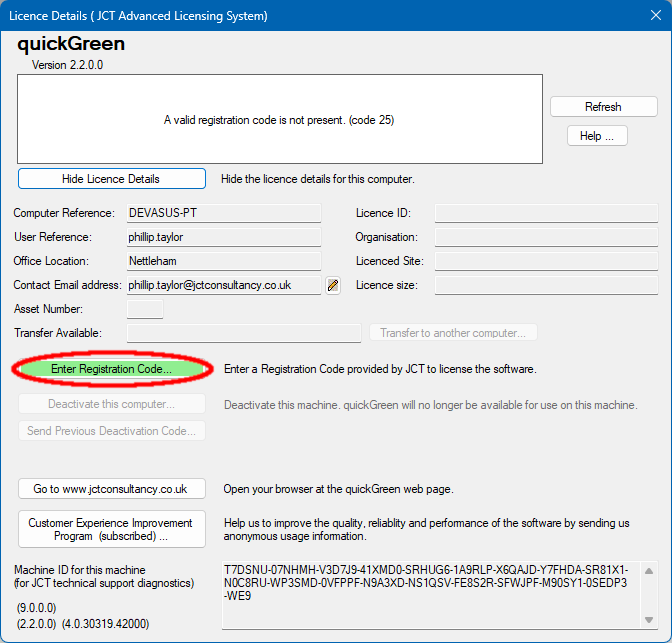
  1. Start quickGreen 2 and select the “Help -> Licence Details…” menu option.
    Click the ‘Enter Registration Code…’ button to start the registration process.
  1. A test will now automatically run to check if quickGreen can communicate online with JCT.If successful, it will advise you to continue with the online registration as described in the next steps. If unsuccessful, it will advise you to continue with the offline email registration process.
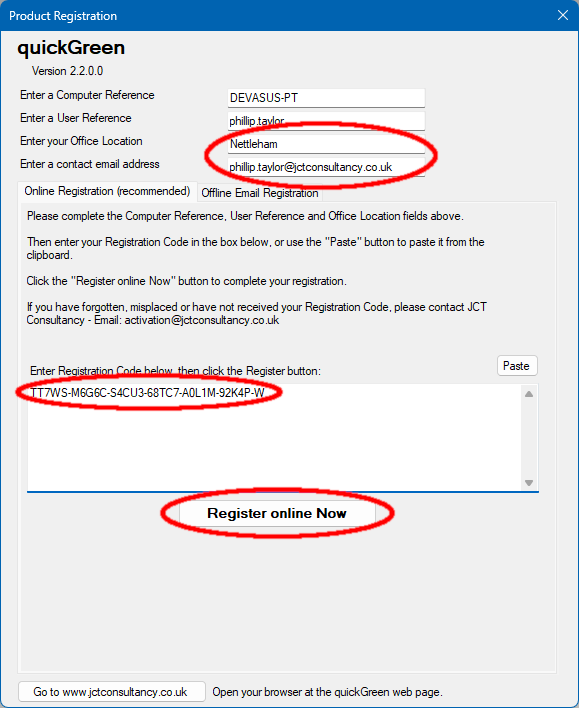
  1. Enter your Office Location, and optionally enter a contact email address. Then enter the Registration Code that has been provided to you with your licence and click the ‘Register online Now’ button. quickGreen will now automatically contact JCT to ensure that the Registration Code is valid. This may take a few seconds.
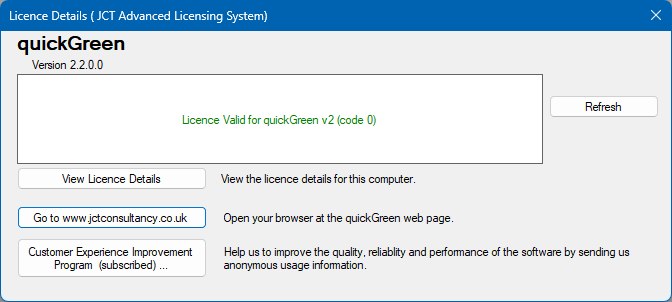
  1. Once your Registration Code has been validated a dialog will be presented indicating that the registration has been successful.
  1. If the registration process was unsuccessful (for example if JCT could not be automatically contacted) you will be presented with a dialog box providing additional information advising how best to resolve the problem.

Email (Offline) Registration Using the JCT Advanced Licensing System

For speed and simplicity we recommend online registration, however if quickGreen 2 is unable to access the internet you can instead use the email registration process.

Please note that if quickGreen continues to be unable to access the internet it may periodically prompt you to repeat the email registration process in order to verify your licence.

  1. Start quickGreen and select the “Help -> Licence Details…” menu option.
    Click the ‘Enter Registration Code…’ button to start the registration process.
  1. For speed and simplicity we recommend online registration, however if you wish to proceed with email registration then continue as follows.

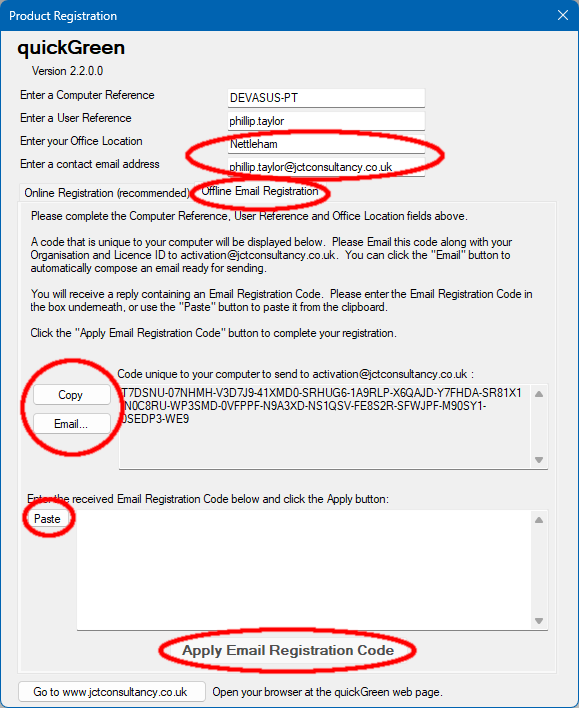
    Enter your Office Location, and optionally enter a contact email address, then click the “Offline Email Registration” tab. quickGreen 2 will display a code that is unique to your computer. Please Email the code along with your Organisation and Licence ID to activation@jctconsultancy.co.uk. You can click the “Email” button to automatically compose an email ready for sending.

    You will receive a reply containing an Email Registration Code. Please paste the Email Registration Code in the box underneath, then click the Apply button to complete your registration.

  1. Once your Email Registration Code has been validated a dialog will be presented indicating that the registration has been successful.
  1. If the registration process was unsuccessful for any reason you will be presented with a dialog box providing additional information advising how best to resolve the problem.

Other problems? Contact us!


    * Indicates required field

    No products in the basket.